The two controls macOS is missing
macOS gives you only two native settings: a brightness slider and an auto-brightness toggle. You cannot control when the backlight will turn on, and how bright it will be at the same time.
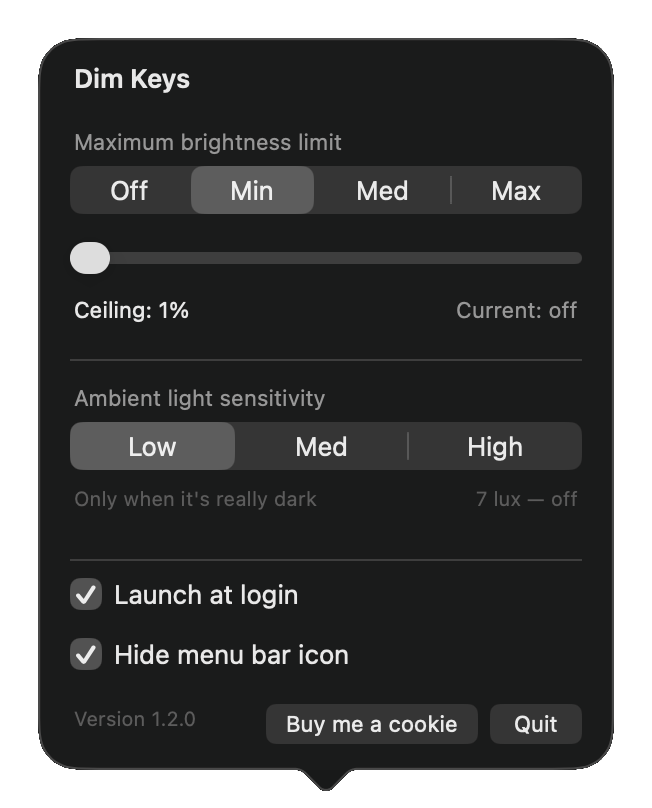
Dim Keys reads the ambient light sensor once a second and drives the backlight itself, from two settings that you have full control of.
Maximum brightness limit
The level the backlight will not go past, however dark it gets.
- Off
- Dark at every light level
- Min
- The dimmest option
- Med
- 35%
- Max
- No cap
Ambient light sensitivity
The light level at which the backlight turns on at all.
- Low
- < 7 lux — an unlit room
- Med
- < 48 lux — a dim room
- High
- < 120 lux — normal room light
Small, quiet, and honest about it
Stays out of the way
One menu bar icon, no Dock icon, no window. Idle CPU measures 0.0% and it sleeps until the light actually changes. You can hide the icon too.
Nothing leaves your Mac
The only request it ever makes is asking GitHub whether there is a newer version. No accounts, no analytics, no telemetry, and it never installs anything by itself.
Signed and notarized by Apple
Universal, so it runs native on Apple Silicon and Intel.
Open source, MIT
Under 2 MB installed, one binary, no bundled frameworks, about 1,900 lines of Swift. Read it, build it yourself, or take it apart.
Install
- Download the
.dmgand open it. - Drag Dim Keys into Applications.
- Open it. It appears in the menu bar — click the icon for the panel.
Requirements
A MacBook with a backlit keyboard and an ambient light sensor. Apple Silicon or Intel.
macOS 13 or later. Everything has been developed and verified on macOS 26 only. If Dim Keys tells you it found no keyboard backlight, open an issue and say which macOS version you are on.